
External System Integration - ApiForms
BzCtrl. provides the ability to call predefined Forms through API communication using the ApiForms feature. This allows external systems to create and link Form instances directly from within their own operational processes.
The main value of ApiForms is that a user can launch a specific Form directly from the source system, while the created Form instance remains permanently accessible through a stored URL within that source system.
How ApiForms Work
Each ApiForm provides a unique API endpoint that allows an external system to create a new Form instance in BzCtrl.
The request includes:
- Predefined Form reference (via API Endpoint)
- Tags and identifiers (for example an Order Number, Shipment Number, or Case ID).
Once the Form instance is created, BzCtrl. returns a response containing the direct URL to the Form instance. This URL can then be stored in the source system, allowing users to always reopen the corresponding Form directly from their operational process.
User actions


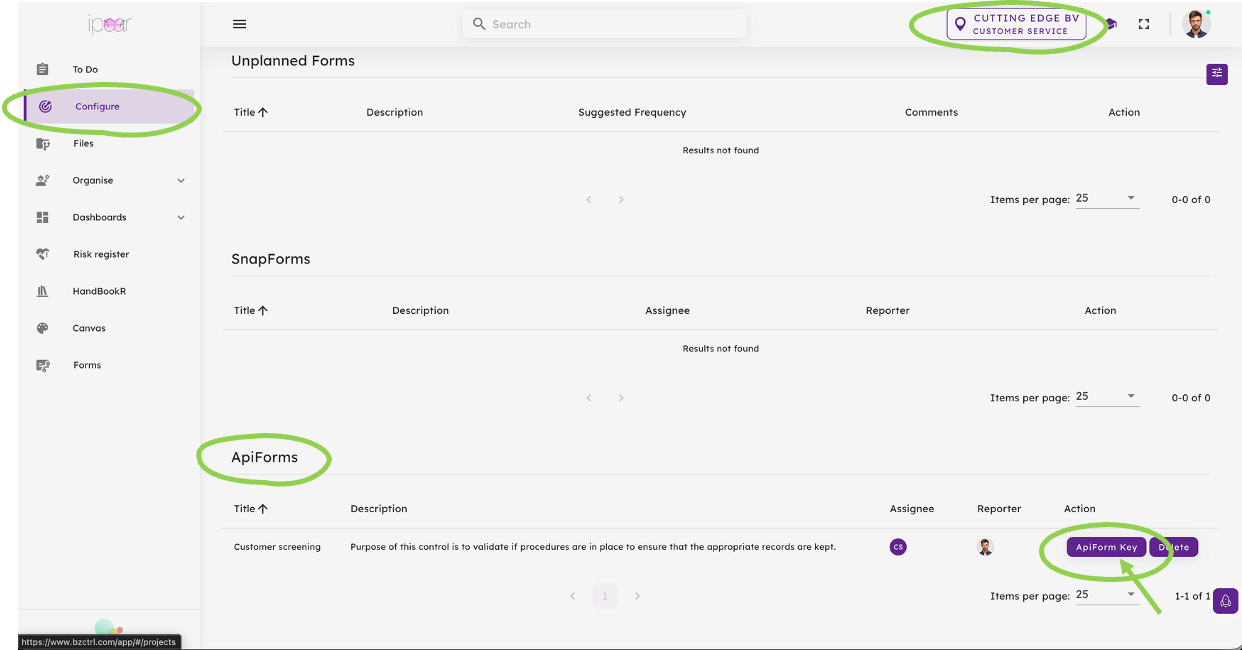
Step 3 - From the Configure page the Form is now available as ApiForm. Please make sure the correct Workspace is selected (right top). From the ApiForms Table select the ApiForm Key Button to get the details to share with your developers.
Input to Developers External system
Step 1 - Authentication
Before an ApiForm can be called, the external application must authenticate with BzCtrl. Authentication is performed by sending a POST request to the appropriate authentication endpoint using credentials provided for API communication.
Endpoints
Acceptance Environment (ACC)
https://acc.bzctrl.com/bzctrl-core-api/oauth/token
Production Environment (PROD)
https://bzctrl.com/bzctrl-core-api/oauth/token
Request Method
POST
Request Body (x-www-form-urlencoded)
grant_type=password
username=example@example.com
password=Ex@mpl3!
Sample Response
{
  "access_token": "xxxxxxxxxx",
  "refresh_token": "xxxxxxxxxx",
  "token_type": "Bearer",
  "expires_in": 3600,
  "scope": "*",
  "jti": "xxxxxxxxxx"
}
Result
Upon successful authentication, BzCtrl. returns an access token that must be included in subsequent API requests. The token serves as proof of authentication and authorizes communication with the BzCtrl. API. The token remains valid for the period specified in the expires_in field.

After creation the Response message includes a Tasklink that can be stored to allow the user access to the Form Instance from the External system at any stage.
No Comments