
User Settings
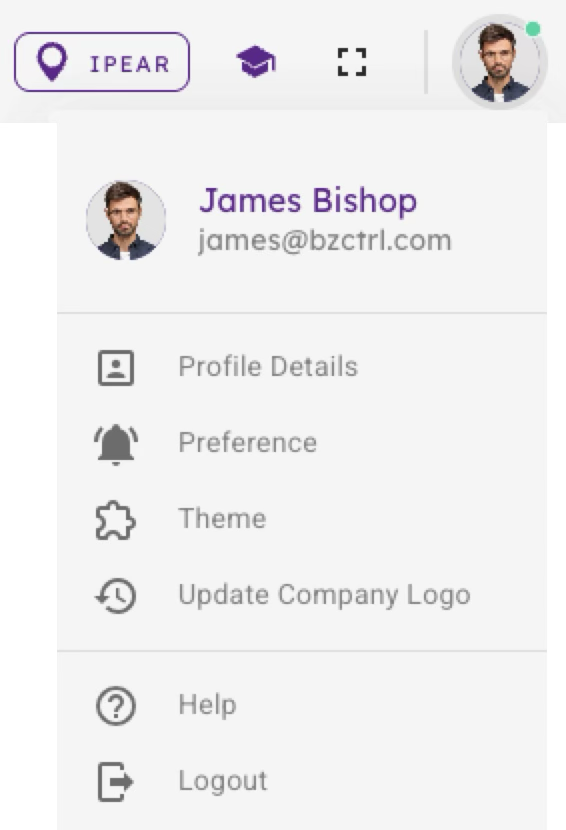
In the top-right corner of BzCtrl., you will find your Avatar. Clicking on it gives access to general settings where you can configure your profile, preferences, calendar integration, security, and the look-and-feel of the application.
Profile & Calendar Integration
-
Profile Details: Update your personal information such as name, email, and contact details.
-
Calendar Linking: Connect BzCtrl. with Google or Outlook calendars. Once linked, your To-do’s with due dates will appear directly in your calendar. Each item can be accessed via a direct URL from your calendar.
-
Notifications: Choose which notifications you want to receive.
-
Landing Page: Set your preferred page to open when you log in.
-
Table Rows: Adjust the number of rows displayed in tables on Pages.
-
Reminders: Control the frequency of reminders for tasks.
Security
-
Two-Factor Authentication (2FA): Enable an extra layer of security.
-
Password Policies: Optionally enforce password resets every 3 months.
Theme & Customization
-
Theme Selection: Choose between light or dark mode.
-
Colors: Select your preferred interface colors.
-
Company Branding: Customize BzCtrl. to match your company’s standards with logos, colors, and other branding elements.
These settings allow you to tailor BzCtrl. to your personal workflow and company requirements, helping you stay organized, secure, and efficient.