
The To-do Page
Types of To-do’s
BzCtrl. supports four types of To-do’s:
Tasks – Regular action items.
Incidents – Issues that need attention or resolution.
Forms – Structured inputs or reports.
Documents – File-based tasks or references (entry via Files Page only).
Creating a To-do
-
Workspace Selected:
When a Workspace is selected in the Navigation Tree (top-right), BzCtrl. knows where to store the To-do. A Quick Entry section appears at the top of the page:-
Select the type of To-do.
-
Enter a title.
-
Press Enter.
The To-do is immediately created in the selected Workspace.
-

-
Domain Selected:
When a Domain (instead of a Workspace) is selected, the Quick Entry section is not available, because the system cannot determine where to store the To-do.-
In this case, create a To-do via the Plus (+) button in the top-right corner.
-
Specify the details, including which Workspace the To-do belongs to.
-

Filters & Options
The Filters & Options button, located in the top-right corner of BzCtrl., gives users control over how data is displayed and provides additional functionalities to make work more efficient.

Filters
-
Apply filters to narrow down the To-do’s or data shown on the current Page.
-
Filters can be saved for future use, so you don’t need to reapply them every time.
Options
-
Export to Excel: Download the currently displayed data in Excel format for reporting or further analysis.
-
Guide Tour: Launch an on-screen walkthrough where buttons and features are explained, helping new users understand the tool quickly.
-
Save Filter: Save the current filter settings for quick access later.
Filters and Options allow you to customize your View and access helpful tools that make managing to-do's, data, and processes simpler and more efficient.
Views
BzCtrl. offers five different Views to display your To-do’s, each designed to support different ways of working and tracking progress. You can switch between Views to find the perspective that best suits your task or project.
| View | Icon / Screenshot | Purpose | Best Use Case |
|---|---|---|---|
| List View |  | Shows extensive details and filters | Data-heavy work requiring full information |
| Cards View (Kanban) |  | Visualizes workflow in columns: To-do / In Progress / Done / Expired | Team meetings and collaborative task tracking |
| Gantt View | [Insert screenshot/icon] | Plots To-do’s on a timeline; highlights status and risks with colors | Monitoring projects, control plans, or time-sensitive tasks |
| Tile View | 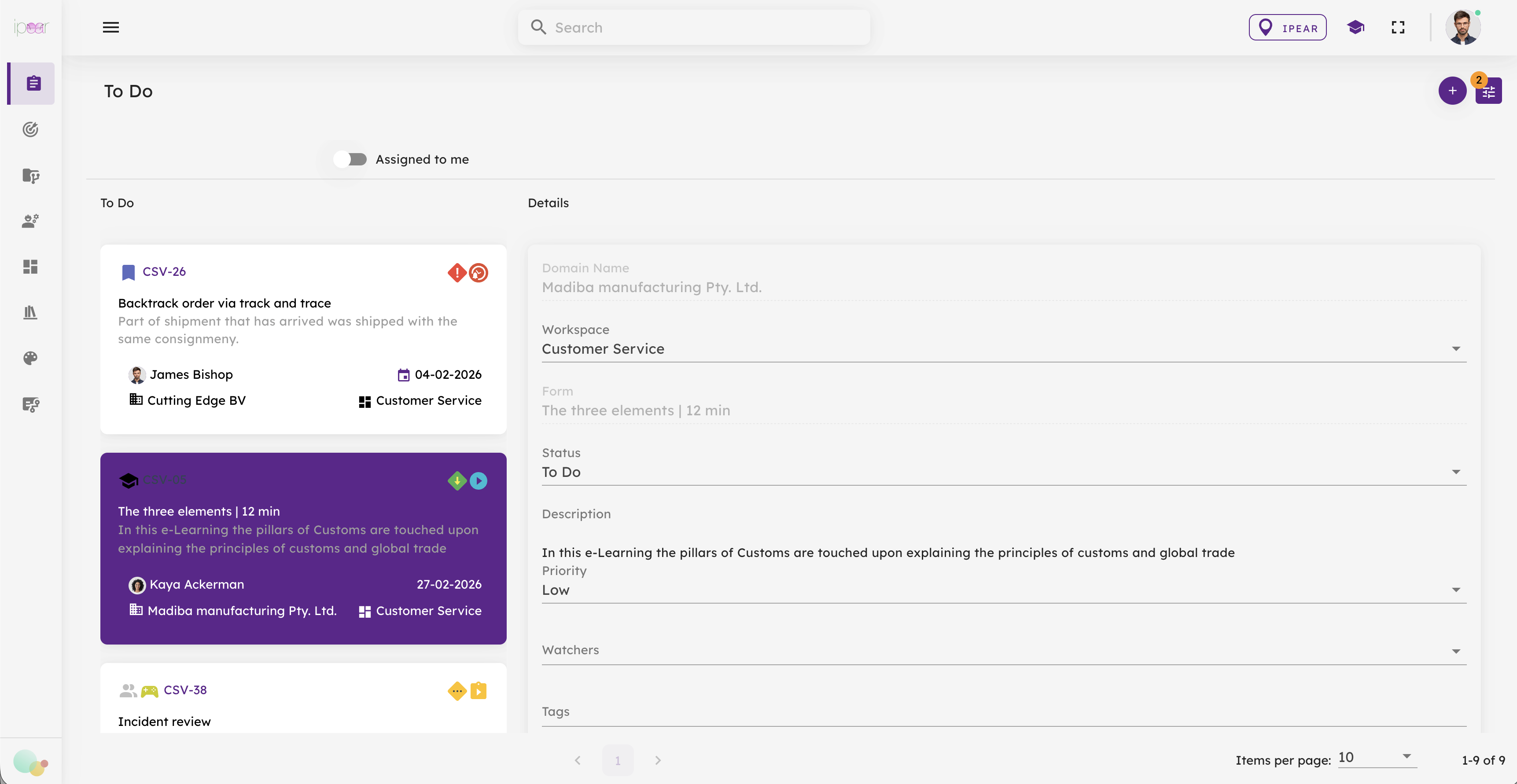 | Displays To-do’s as Tiles; click to view details alongside overview | Tasks needing context and relationships between items |
| Calendar View |  | Shows To-do’s by Due Date; Week and Month views | Planning workloads and tracking deadlines |
1. List View
-
Purpose: Provides the most detailed view of your To-do’s.
-
Strength: Highly effective for seeing extensive details, filters, and statuses.
-
Look & Feel: Simple and functional, less visually appealing, but very practical for data-heavy work.
2. Cards View (Kanban)
-
Purpose: Visualize your workflow in a Kanban-style board.
-
Strength: Ideal for team meetings—shows To-do, In Progress, Done, and Expired at a glance.
-
Use Case: Tracking task status and collaboration across a team.
3. Gantt View
-
Purpose: Plot To-do’s on a timeline, showing deadlines, progress, and risks.
-
Strength: Advanced coloring system highlights status and risk levels.
-
Use Case: Perfect for monitoring control plans, projects, or time-sensitive tasks.
4. Tile View
-
Purpose: Offers context-rich, easy-to-read Tiles for your To-do’s.
-
Strength: Clicking a Tile shows its details alongside the overview, maintaining context while exploring individual items.
-
Use Case: Ideal when you want both detail and an overview of relationships between To-do’s.
5. Calendar View
-
Purpose: Display To-do’s by their Due Date.
-
Strength: Offers Week and Month views for scheduling and planning.
-
Use Case: Planning workloads or tracking deadlines over time.