BzCtrl. Guidance document
Introduction
Welcome to BzCtrl (pronounced “Bizz Control”)—your partner in managing and controlling business processes while keeping compliance in check. To make it truly work, every implementation needs an Owner—someone committed to using BzCtrl. consistently and keeping things on track. With that focus, the tool will streamline workflows, boost efficiency, and help your team get things done.

Use cases
Engaging Business Partners in Compliance Procedures
Instead of receiving documentation from business partners via email for manual review and archiving, streamline and control the process using a SnapForm.
Start by defining which documents are required per order. Then include control questions that allow your business partner to confirm upfront the checks you would normally perform upon receipt of the documentation. For example:


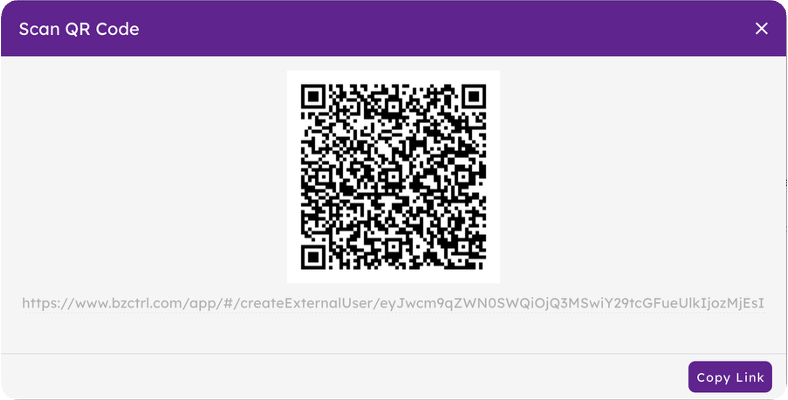
Here you can generate the QR code or URL for the SnapForm.

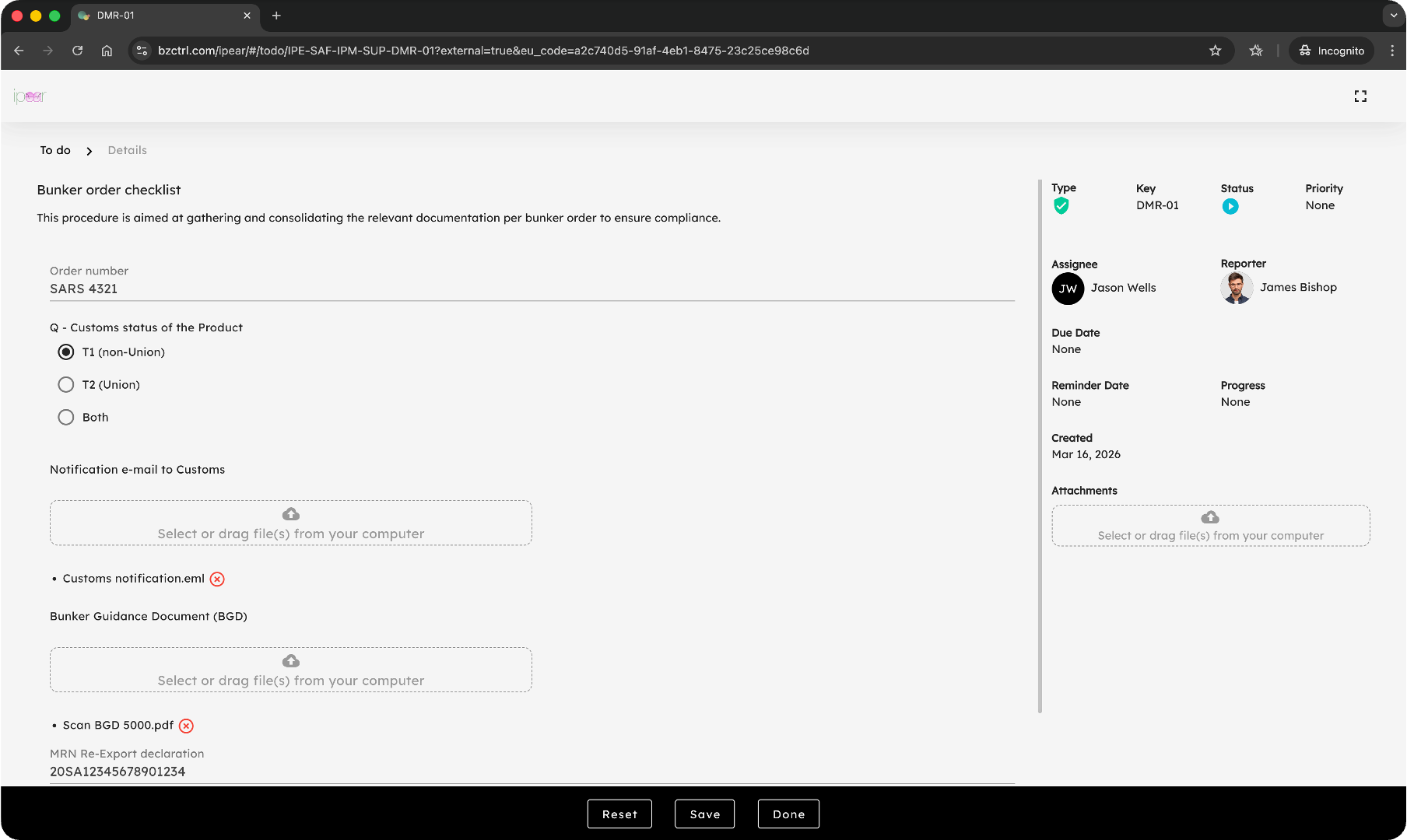

That’s it! Everything is automatically and properly archived, including all relevant attachments.
Note that if it is already known that Jason or a specific group of users will be using the SnapForm, this can also be configured directly in advance.


Navigation and Settings
Navigation
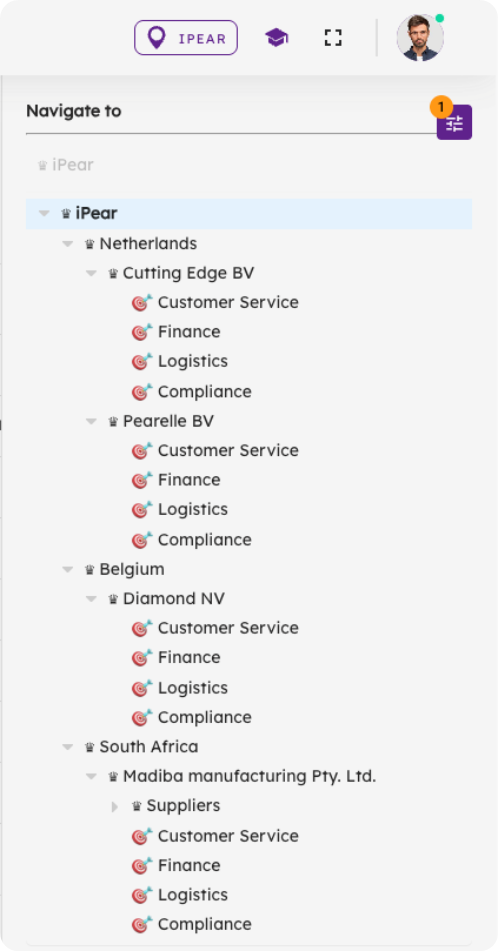
BzCtrl. is organized around Domains and Workspaces, which you can select from the Navigation Tree in the top-right corner of the tool. Understanding this structure is key to using BzCtrl. efficiently.
Domains
-
Purpose: Domains are used to structure and organize Workspaces. They help you group related areas of your business and control how data is shared.
-
Hierarchy: Domains can contain sub-Domains and Workspaces. If a parent Domain contains multiple sub-Domains, all data from the sub-Domains and their Workspaces is visible at the parent level. This creates a clear hierarchical structure.
-
Role Management: Domains are also used to assign user roles, controlling who can access and modify data.
Workspaces
-
Purpose: Workspaces are where the actual To-do’s are recorded and managed.
-
Relation to Domains: Each Workspace belongs to a Domain, and data can be shared across Workspaces belonging to the same Domain.
Pages
-
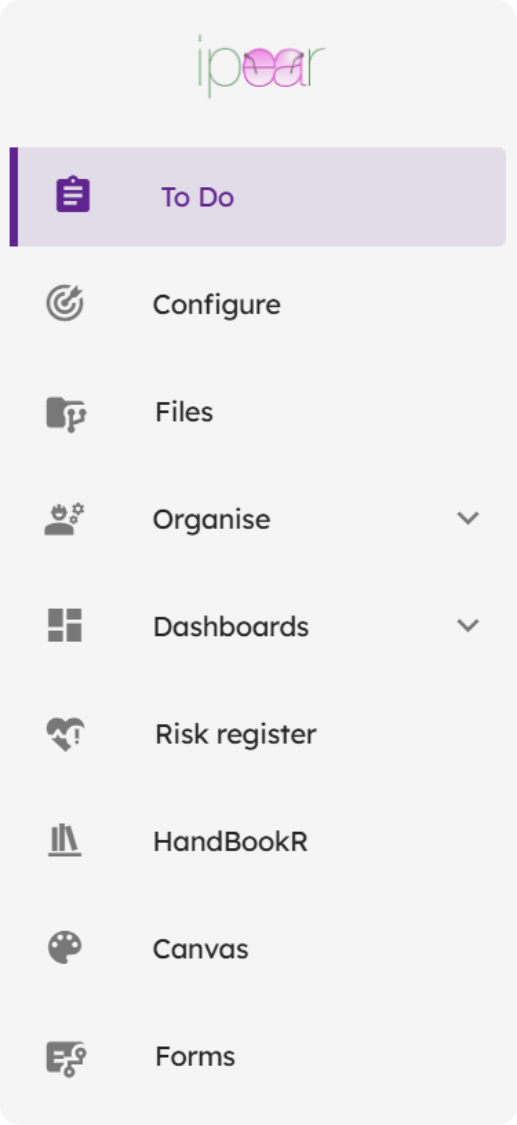
Located on the left-hand side of the interface, Pages display data based on your current selection in the Navigation Tree. Selecting a Domain or Workspace in the tree determines which data is visible.
Quick Overview
User Settings
In the top-right corner of BzCtrl., you will find your Avatar. Clicking on it gives access to general settings where you can configure your profile, preferences, calendar integration, security, and the look-and-feel of the application.

Profile & Calendar Integration
-
Profile Details: Update your personal information such as name, email, and contact details.
-
Calendar Linking: Connect BzCtrl. with Google or Outlook calendars. Once linked, your To-do’s with due dates will appear directly in your calendar. Each item can be accessed via a direct URL from your calendar.
-
Notifications: Choose which notifications you want to receive.
-
Landing Page: Set your preferred page to open when you log in.
-
Table Rows: Adjust the number of rows displayed in tables on Pages.
-
Reminders: Control the frequency of reminders for tasks.
Security
-
Two-Factor Authentication (2FA): Enable an extra layer of security.
-
Password Policies: Optionally enforce password resets every 3 months.
Theme & Customization
-
Theme Selection: Choose between light or dark mode.
-
Colors: Select your preferred interface colors.
-
Company Branding: Customize BzCtrl. to match your company’s standards with logos, colors, and other branding elements.
These settings allow you to tailor BzCtrl. to your personal workflow and company requirements, helping you stay organized, secure, and efficient.
Options and Filters Pane
Internal and External Users
Pages
To do

Types of To-do’s
BzCtrl. supports four types of To-do’s:
Tasks – Regular action items.
Incidents – Issues that need attention or resolution.
Forms – Structured inputs or reports.
Documents – File-based tasks or references (entry via Files Page only).
Creating a To-do
-
Workspace Selected:
When a Workspace is selected in the Navigation Tree (top-right), BzCtrl. knows where to store the To-do. A Quick Entry section appears at the top of the page:-
Select the type of To-do.
-
Enter a title.
-
Press Enter.
The To-do is immediately created in the selected Workspace.
-

-
Domain Selected:
When a Domain (instead of a Workspace) is selected, the Quick Entry section is not available, because the system cannot determine where to store the To-do.-
In this case, create a To-do via the Plus (+) button in the top-right corner.
-
Specify the details, including which Workspace the To-do belongs to.
-

Filters & Options
The Filters & Options button, located in the top-right corner of BzCtrl., gives users control over how data is displayed and provides additional functionalities to make work more efficient.

Filters
-
Apply filters to narrow down the To-do’s or data shown on the current Page.
-
Filters can be saved for future use, so you don’t need to reapply them every time.
Options
-
Export to Excel: Download the currently displayed data in Excel format for reporting or further analysis.
-
Guide Tour: Launch an on-screen walkthrough where buttons and features are explained, helping new users understand the tool quickly.
-
Save Filter: Save the current filter settings for quick access later.
Filters and Options allow you to customize your View and access helpful tools that make managing to-do's, data, and processes simpler and more efficient.
Views
BzCtrl. offers five different Views to display your To-do’s, each designed to support different ways of working and tracking progress. You can switch between Views to find the perspective that best suits your task or project.
| View | Icon / Screenshot | Purpose | Best Use Case |
|---|---|---|---|
| List View |  | Shows extensive details and filters | Data-heavy work requiring full information |
| Cards View (Kanban) |  | Visualizes workflow in columns: To-do / In Progress / Done / Expired | Team meetings and collaborative task tracking |
| Gantt View | [Insert screenshot/icon] | Plots To-do’s on a timeline; highlights status and risks with colors | Monitoring projects, control plans, or time-sensitive tasks |
| Tile View | 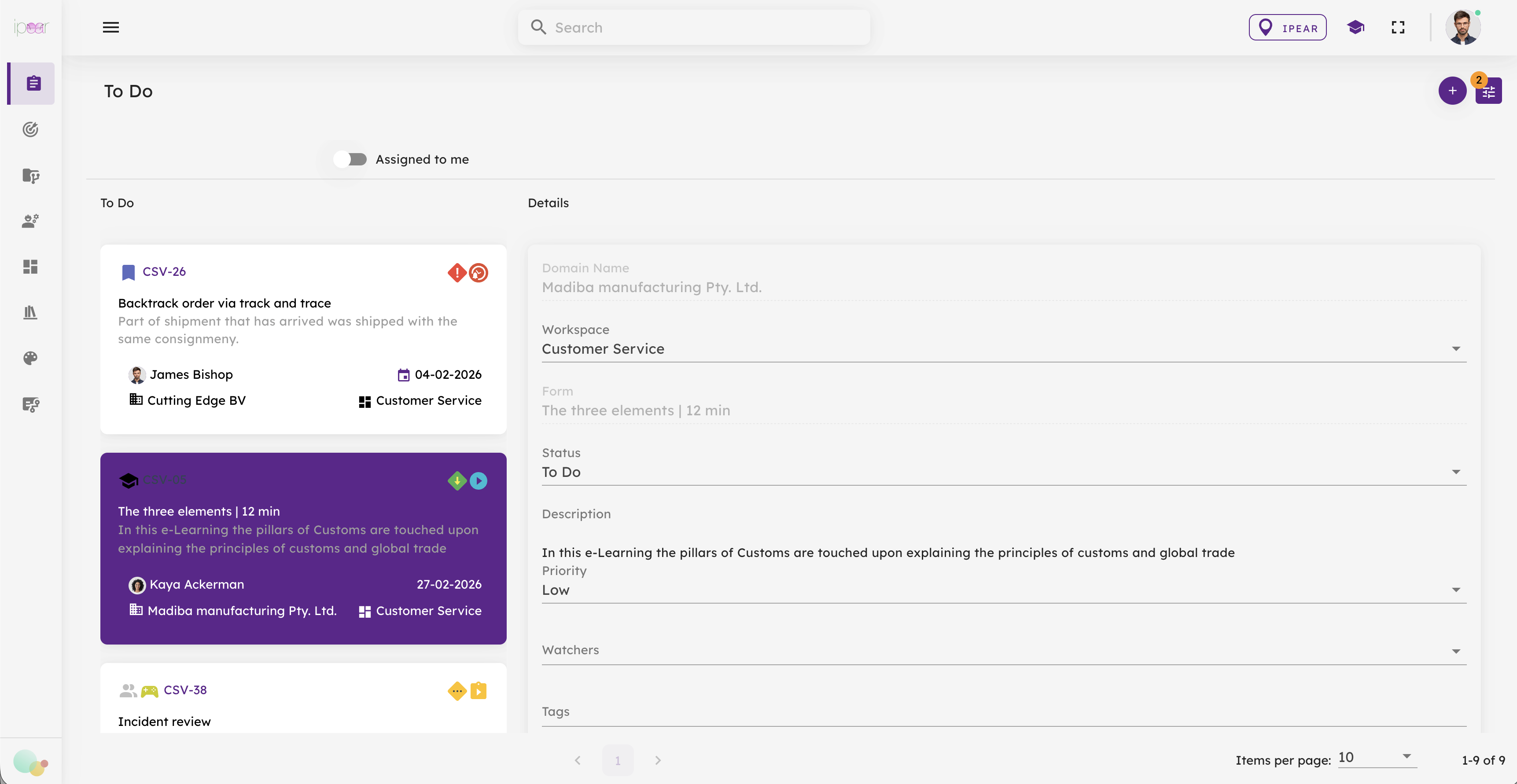 | Displays To-do’s as Tiles; click to view details alongside overview | Tasks needing context and relationships between items |
| Calendar View |  | Shows To-do’s by Due Date; Week and Month views | Planning workloads and tracking deadlines |
1. List View
-
Purpose: Provides the most detailed view of your To-do’s.
-
Strength: Highly effective for seeing extensive details, filters, and statuses.
-
Look & Feel: Simple and functional, less visually appealing, but very practical for data-heavy work.
2. Cards View (Kanban)
-
Purpose: Visualize your workflow in a Kanban-style board.
-
Strength: Ideal for team meetings—shows To-do, In Progress, Done, and Expired at a glance.
-
Use Case: Tracking task status and collaboration across a team.
3. Gantt View
-
Purpose: Plot To-do’s on a timeline, showing deadlines, progress, and risks.
-
Strength: Advanced coloring system highlights status and risk levels.
-
Use Case: Perfect for monitoring control plans, projects, or time-sensitive tasks.
4. Tile View
-
Purpose: Offers context-rich, easy-to-read Tiles for your To-do’s.
-
Strength: Clicking a Tile shows its details alongside the overview, maintaining context while exploring individual items.
-
Use Case: Ideal when you want both detail and an overview of relationships between To-do’s.
5. Calendar View
-
Purpose: Display To-do’s by their Due Date.
-
Strength: Offers Week and Month views for scheduling and planning.
-
Use Case: Planning workloads or tracking deadlines over time.
Configure Workspace
Files
Organise
Dashboards
Risk Register
The Risk Register Page in BzCtrl. allows users to identify, document, and manage risks, including the actions taken to mitigate them. It provides a centralized overview of all risks and supports linking them to relevant activities and assets within the system.
Registering a Risk
Users can create and maintain risks by:
- Defining a Risk Key (unique reference)
- Providing a Title and Description of the risk
- Describing Mitigating Actions
- Assigning a Priority and Status
Risk Overview (Table View)
The main table provides a clear overview of all registered risks, including:
- Risk Key
- Title
- Description
- Priority
- Status
Selecting the Risk Key opens the detailed view of that specific risk.
Risk Details Page
The Details Page provides a complete overview of the selected risk and allows users to:
- View and update the risk description
- Define and maintain mitigating actions
- Link To-do categories (Tasks and Incidents) so that related To-do’s are automatically associated with the risk
-
Connect relevant assets within BzCtrl., such as:
- HandBookR’s
- Canvases
- Forms
This ensures that all activities, documentation, and controls related to the risk are consolidated in one place.
Risk Matrix
In addition to the table view, a Risk Matrix subpage is currently under development.
- The Risk Matrix visualizes risks in a graph based on Impact and Likelihood.
- Each risk is plotted according to its assessed impact and the likelihood derived from related Incidents and Forms.
- This view helps users quickly identify high-risk areas and prioritize mitigating actions.
Risk Matrix score calculation

HandBookR
HandBookR is an embedded documentation feature within BzCtrl., designed to structure, manage, and share knowledge in a clear and accessible way. It enables users to create and maintain structured documentation that is directly linked to business processes and controls.
Structured Documentation
HandBookR organizes information in a logical, hierarchical structure:
- Books – High-level topics or areas
- Chapters – Subsections within a Book
- Pages – Individual content items
This structure ensures clarity and makes documentation easy to navigate and maintain.
Content Creation & Editing
- Create and edit content using a user-friendly editor
- Apply rich text formatting, including images, links, and structured layouts
- Maintain documentation collaboratively with other users
Search & Navigation
- Quickly find information using search functionality
- Navigate easily through Books, Chapters, and Pages
- Link content across pages for better context and connectivity
Version Control
- Automatic tracking of content changes
- View and restore previous versions
- Maintain full visibility over updates
Diagrams & Process Flows
HandBookR allows users to easily include diagrams and process flows within documentation.
- Create visual representations such as flowcharts, process diagrams, and system overviews
- Use drag-and-drop elements, shapes, and connectors to build clear visual structures
- Diagrams can be edited directly within HandBookR
This functionality is powered by the same Canvas capability available elsewhere in BzCtrl., enabling users to combine written documentation with visual process design in one place.
Access Control
- Manage who can view, create, or edit content
- Align permissions with roles defined in BzCtrl.
Integration within BzCtrl.
HandBookR can be linked to other elements in BzCtrl., such as:
- Risks (as part of mitigating actions)
- To-do’s (Tasks, Incidents, Forms, Documents)
This ensures that documentation is directly connected to operational activities and compliance processes.
Canvas
Canvas in BzCtrl. is a visual diagramming feature that allows users to design, document, and share processes, workflows, and structures in a clear graphical format. It is used to complement written documentation (for example in HandBookR) by translating complex information into easy-to-understand visuals.
Core Functionality
Canvas provides a flexible diagramming workspace where users can:
- Create process flows, flowcharts, and diagrams
- Drag and drop shapes, connectors, and elements onto a visual workspace
- Connect elements to represent relationships, sequences, and dependencies
- Structure complex processes in a clear, visual format
- Edit diagrams directly within the tool with instant updates
Typical Use Cases
Canvas is commonly used for:
- Process mapping (end-to-end workflows)
- Control frameworks and compliance flows
- Organizational structures
- System and data flow diagrams
- Visual explanations of procedures or risks
Key Features
- Drag-and-drop editor: Easily build diagrams without technical skills
- Predefined shapes: Standard flowchart and diagram elements available
- Connectors: Link elements to show logic, flow, or dependencies
- Layering and grouping: Structure complex diagrams clearly
- Scalability: From simple flows to highly detailed process maps
- Export & reuse: Diagrams can be reused in documentation or shared across BzCtrl.
Role within BzCtrl.
Canvas is fully integrated into BzCtrl. and can be used directly from documentation (such as HandBookR) or other functional areas. This allows users to combine textual documentation and visual process design in a single environment, ensuring better understanding and alignment across teams.
Forms
Customisations
VAT reporting
Incidents interface
Belgian excise reporting
Taric Service
Features in BzCtrl.
These features can be used across multiple Pages and Workspaces to simplify daily operations and improve efficiency.
Features such as ApiForm and SnapForm also enable integration with external users and systems, allowing data to be exchanged and processes to connect seamlessly across platforms.
Additional information and feature updates can also be found on the official website: BzCtrl.
External System Integration - ApiForms
BzCtrl. provides the ability to call predefined Forms through API communication using the ApiForms feature. This allows external systems to create and link Form instances directly from within their own operational processes.
The main value of ApiForms is that a user can launch a specific Form directly from the source system, while the created Form instance remains permanently accessible through a stored URL within that source system.
How ApiForms Work
Each ApiForm provides a unique API endpoint that allows an external system to create a new Form instance in BzCtrl.
The request includes:
- Predefined Form reference (via API Endpoint)
- Tags and identifiers (for example an Order Number, Shipment Number, or Case ID).
Once the Form instance is created, BzCtrl. returns a response containing the direct URL to the Form instance. This URL can then be stored in the source system, allowing users to always reopen the corresponding Form directly from their operational process.
User actions


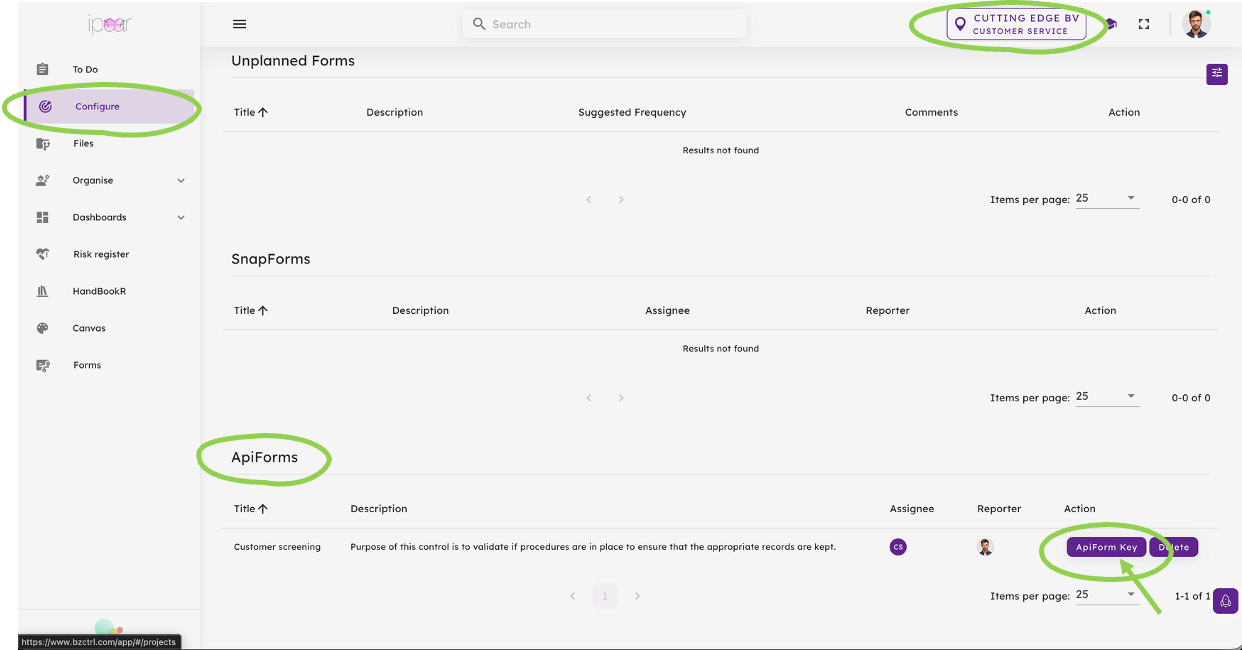
Step 3 - From the Configure page the Form is now available as ApiForm. Please make sure the correct Workspace is selected (right top). From the ApiForms Table select the ApiForm Key Button to get the details to share with your developers.
Input to Developers External system
Step 1 - Authentication
Before an ApiForm can be called, the external application must authenticate with BzCtrl. Authentication is performed by sending a POST request to the appropriate authentication endpoint using credentials provided for API communication.
Endpoints
Acceptance Environment (ACC)
https://acc.bzctrl.com/bzctrl-core-api/oauth/token
Production Environment (PROD)
https://bzctrl.com/bzctrl-core-api/oauth/token
Request Method
POST
Request Body (x-www-form-urlencoded)
grant_type=password
username=example@example.com
password=Ex@mpl3!
Sample Response
{
  "access_token": "xxxxxxxxxx",
  "refresh_token": "xxxxxxxxxx",
  "token_type": "Bearer",
  "expires_in": 3600,
  "scope": "*",
  "jti": "xxxxxxxxxx"
}
Result
Upon successful authentication, BzCtrl. returns an access token that must be included in subsequent API requests. The token serves as proof of authentication and authorizes communication with the BzCtrl. API. The token remains valid for the period specified in the expires_in field.

After creation the Response message includes a Tasklink that can be stored to allow the user access to the Form Instance from the External system at any stage.
External System Integration - Incidents & Tasks
BzCtrl. provides a feature that allows external systems to create Incidents and Tasks directly through REST API communication. This enables operational systems to register issues or actions directly within their own workflows while ensuring follow-up and tracking take place in BzCtrl.
The main value of this feature is that it allows Incidents and Tasks to be created directly from specific screens or processes within an external operational system, without requiring users to manually enter data into BzCtrl.
Integration Flow
The integration process consists of the following steps:
The request contains the information required to create the Incident (or Task) in BzCtrl.
Step 1 - Authentication
Before an ApiForm can be called, the external application must authenticate with BzCtrl. Authentication is performed by sending a POST request to the appropriate authentication endpoint using credentials provided for API communication.
Endpoints
Acceptance Environment (ACC)
https://acc.bzctrl.com/bzctrl-core-api/oauth/token
Production Environment (PROD)
https://bzctrl.com/bzctrl-core-api/oauth/token
Request Method
POST
Request Body (x-www-form-urlencoded)
grant_type=password
username=example@example.com
password=Ex@mpl3!
Sample Response
{
  "access_token": "xxxxxxxxxx",
  "refresh_token": "xxxxxxxxxx",
  "token_type": "Bearer",
  "expires_in": 3600,
  "scope": "*",
  "jti": "xxxxxxxxxx"
}
Result
Upon successful authentication, BzCtrl. returns an access token that must be included in subsequent API requests. The token serves as proof of authentication and authorizes communication with the BzCtrl. API. The token remains valid for the period specified in the expires_in field.
Step 2 - Create Incident (or Task)
ACC: https://acc.bzctrl.com/bzctrl-core-api/api/v1/task/add-task
PROD: https://www.bzctrl.com/bzctrl-core-api/api/v1/task/add-task
Note: The access token received from the OAuth Token API must be included in the Authorization header using the Bearer scheme.
Request Method: POST
Required Headers
Content-Type: application/json
Authorization: Bearer {access_token}
Sample Request Body
{
"todoType":"INCIDENT",
"domainWorkSpace":"EXA-CON-BUS-WOR",
"title":"Potential Customs claim",
"description":"Operation started without proper approvals",
"financialImpact":"123577",
"impact":"HIGH",
"likelihood":"MEDIUM",
"status":"IN PROGRESS",
"priority":"HIGH",
"assignee":"Example@example.com",
"reporter":"Example@example.com",
"category":["Customs"],
"subCategory":["IT"],
"lrn":"725462",
"orderID":"ORDER 777",
"reminderDate":"2024-09-27"
}
Sample Response
{
"title":"Potential Customs claim",
"taskType":"INCIDENT",
"description":"Operation started without proper approvals",
"taskLink":"https://www.bzctrl.com/app/#/todo/EXA-CON-BUS-WOR-03",
"tags":["ORDER 777"]
}
| Todo Type | Fields | Input | Comments |
| incident, task | todoType* | INCIDENT | Customer - option to change to Task (or in case only used for Incidents default value) |
| incident, task | domain* | EXA-CON-BUS-WOR | Default value to include by Customer, relates to the Domain |
| incident, task | workspace* | WOR | Default value to include by Customer, relates to the Workspace under the Domain |
| incident, task | title* | Free text field | Customer, allow user to provide Title/Subject |
| incident, task | description* | Free text field | Customer, allow user to provide Description |
| task | result | Free text field | Customer, allow user to provide Results (optional) |
| incident | financialImpact | Numbers field | Customer - For User it should be clear this is a EUR amount. Only Number is provided. BzCtrl. - This should be included in the Field "Potential financial impact of the incident" set as EUR. |
| incident | impact | High, Medium, Low | Customer, allow user to select out of these three options (optional) |
| incident | likelihood | High, Medium, Low | Customer, allow user to select out of these three options (optional) |
| incident, task | status* | In Progress | Options BzCtrl. are To do, In Progress, Done and Expired. Customer - default when sending on In Progress, with option to change by User to Done. BzCrtrl. - If status - Done, set due date to date transaction. |
| incident, task | priority | High, Medium, Low | Customer, allow user to select out of these three options (optional) |
| incident, task | assignee* | User@example.com | Customer, Same as Reporter. E-mail address of the User. |
| incident, task | reporter* | User@example.com | Customer, E-mail address of the User. |
| incident, task | category | n/a | |
| incident, task | orderID* | ServiceOrder Number | Customer - BzCrtrl. - Set as Tag |
| incident, task | LRN | LRN | Customer - BzCrtrl. - Set as Tag (if available handy reference) |
| incident, task | reminderDate | Calendar selection | n/a |
ApiForm instruction - VTTI specific
BzCtrl. provides the ability to call predefined Forms through API communication using the ApiForms feature. This allows external systems to create and link Form instances directly from within their own operational processes.
The main value of ApiForms is that a user can launch a specific Form directly from the source system, while the created Form instance remains permanently accessible through a stored URL within that source system.
How ApiForms Work
Each ApiForm provides a unique API endpoint that allows an external system to create a new Form instance in BzCtrl.
The request includes:
- Predefined Form reference (via API Endpoint)
- Tags and identifiers (for example an Order Number, Shipment Number, or Case ID).
Once the Form instance is created, BzCtrl. returns a response containing the direct URL to the Form instance. This URL can then be stored in the source system, allowing users to always reopen the corresponding Form directly from their operational process.
User actions
Step 3 - From the Configure page the Form is now available as ApiForm. Please make sure the correct Workspace is selected (right top). From the ApiForms Table select the ApiForm Key Button to get the details to share with your developers.
Input to Developers External system
Step 1 - Authentication
Before an ApiForm can be called, the external application must authenticate with BzCtrl. Authentication is performed by sending a POST request to the appropriate authentication endpoint using credentials provided for API communication.
Endpoints
Acceptance Environment (ACC)
https://acc.bzctrl.com/bzctrl-core-api/oauth/token
Production Environment (PROD)
https://bzctrl.com/bzctrl-core-api/oauth/token
Request Method
POST
Request Body (x-www-form-urlencoded)
grant_type=password
username=cms@api.com
password=Nologicincustoms#24
Sample Response
{
  "access_token": "xxxxxxxxxx",
  "refresh_token": "xxxxxxxxxx",
  "token_type": "Bearer",
  "expires_in": 3600,
  "scope": "*",
  "jti": "xxxxxxxxxx"
}
Result
Upon successful authentication, BzCtrl. returns an access token that must be included in subsequent API requests. The token serves as proof of authentication and authorizes communication with the BzCtrl. API. The token remains valid for the period specified in the expires_in field.
ApiForm Key - Production Environment (PROD)
After creation the Response message includes a Tasklink that can be stored to allow the user access to the Form Instance from the External system at any stage.