# Pages
This Chapter described the features on a Page by Page basis explaining the features the Page offers.
# To do
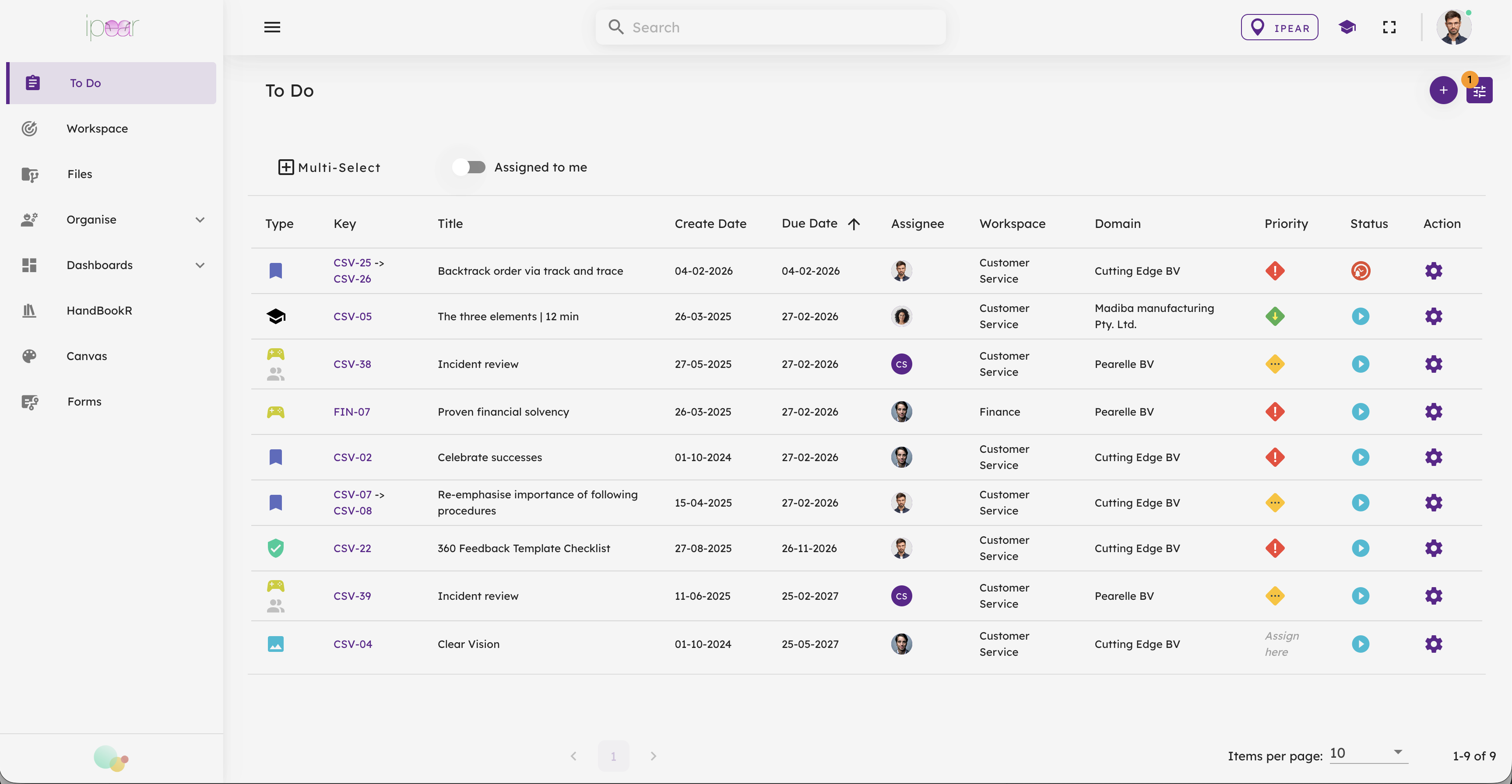
#### 
####
#### Types of To-do’s
BzCtrl. supports **four types of To-do’s**:
1. **Tasks** – Regular action items.
2. **Incidents** – Issues that need attention or resolution.
3. **Forms** – Structured inputs or reports.
4. **Documents** – File-based tasks or references (entry via Files Page only).
####
#### Creating a To-do
- **Workspace Selected:**
When a Workspace is selected in the Navigation Tree (top-right), BzCtrl. knows where to store the To-do. A **Quick Entry** section appears at the top of the page:
1. Select the type of To-do.
2. Enter a title.
3. Press **Enter**.
The To-do is immediately created in the selected Workspace.

- **Domain Selected:**
When a Domain (instead of a Workspace) is selected, the Quick Entry section is not available, because the system cannot determine where to store the To-do.
- In this case, create a To-do via the **Plus (+) button** in the top-right corner.
- Specify the details, including which Workspace the To-do belongs to.

### Filters & Options
The **Filters & Options** button, located in the top-right corner of BzCtrl., gives users control over how data is displayed and provides additional functionalities to make work more efficient.

####
#### Filters
- Apply filters to **narrow down the To-do’s** or data shown on the current Page.
- Filters can be **saved** for future use, so you don’t need to reapply them every time.
####
#### Options
- **Export to Excel:** Download the currently displayed data in Excel format for reporting or further analysis.
- **Guide Tour:** Launch an on-screen walkthrough where buttons and features are explained, helping new users understand the tool quickly.
- **Save Filter:** Save the current filter settings for quick access later.
Filters and Options allow you to **customize your View** and access helpful tools that make managing to-do's, data, and processes simpler and more efficient.
#### Views
BzCtrl. offers **five different Views** to display your To-do’s, each designed to support different ways of working and tracking progress. You can switch between Views to find the perspective that best suits your task or project.
| **View** | **Icon / Screenshot** | **Purpose** | **Best Use Case** |
|---|
| **List View** |  | Shows extensive details and filters | Data-heavy work requiring full information |
| **Cards View (Kanban)** |  | Visualizes workflow in columns: To-do / In Progress / Done / Expired | Team meetings and collaborative task tracking |
| **Gantt View** | \[Insert screenshot/icon\] | Plots To-do’s on a timeline; highlights status and risks with colors | Monitoring projects, control plans, or time-sensitive tasks |
| **Tile View** | 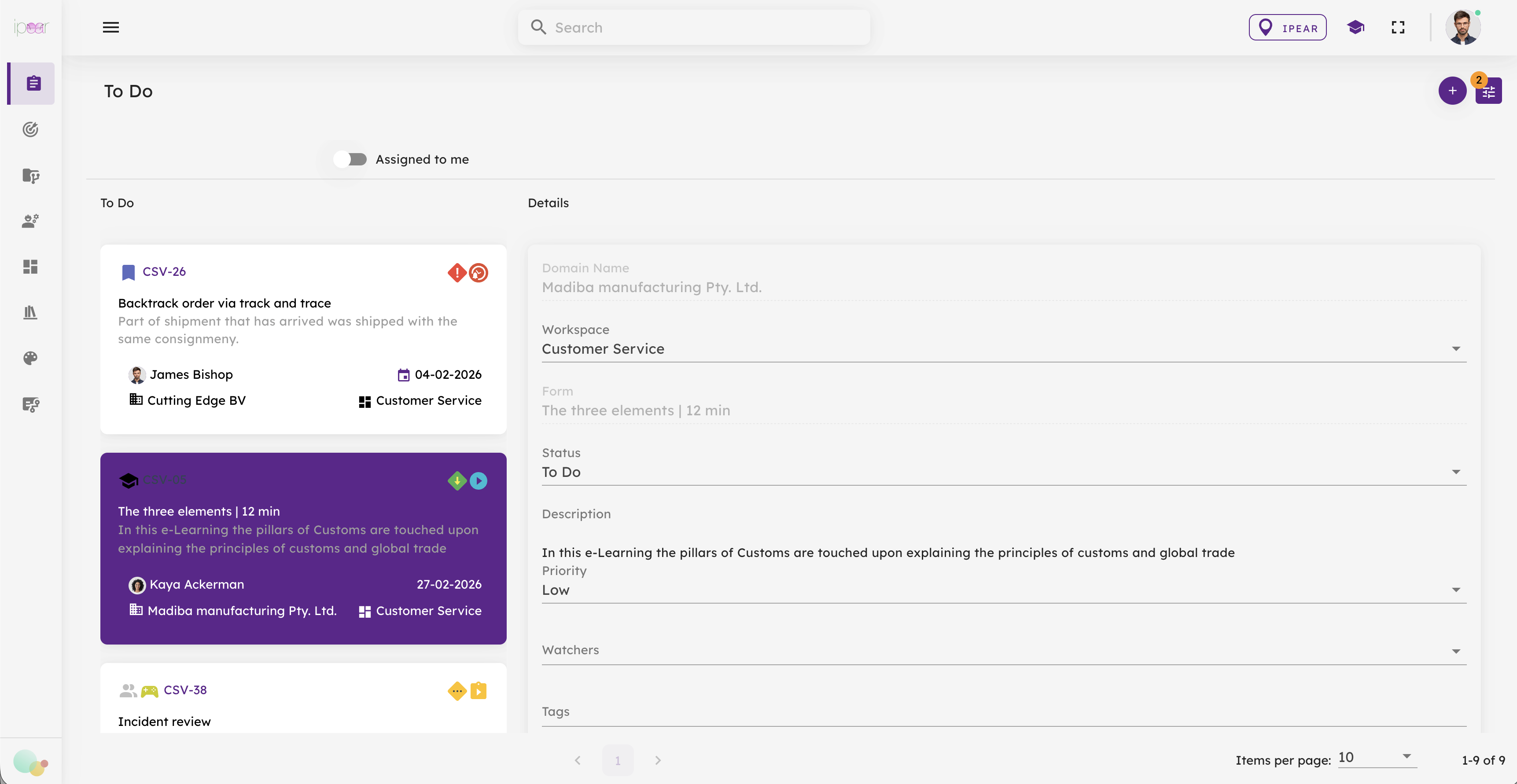 | Displays To-do’s as Tiles; click to view details alongside overview | Tasks needing context and relationships between items |
| **Calendar View** |  | Shows To-do’s by Due Date; Week and Month views | Planning workloads and tracking deadlines |
#### 1. List View
- **Purpose:** Provides the most detailed view of your To-do’s.
- **Strength:** Highly effective for seeing extensive details, filters, and statuses.
- **Look & Feel:** Simple and functional, less visually appealing, but very practical for data-heavy work.
####
#### 2. Cards View (Kanban)
- **Purpose:** Visualize your workflow in a **Kanban-style board**.
- **Strength:** Ideal for team meetings—shows **To-do, In Progress, Done, and Expired** at a glance.
- **Use Case:** Tracking task status and collaboration across a team.
####
#### 3. Gantt View
- **Purpose:** Plot To-do’s on a **timeline**, showing deadlines, progress, and risks.
- **Strength:** Advanced coloring system highlights status and risk levels.
- **Use Case:** Perfect for monitoring **control plans, projects, or time-sensitive tasks**.
####
#### 4. Tile View
- **Purpose:** Offers **context-rich, easy-to-read Tiles** for your To-do’s.
- **Strength:** Clicking a Tile shows its details alongside the overview, maintaining context while exploring individual items.
- **Use Case:** Ideal when you want both detail and an overview of relationships between To-do’s.
####
#### 5. Calendar View
- **Purpose:** Display To-do’s by their **Due Date**.
- **Strength:** Offers **Week** and **Month** views for scheduling and planning.
- **Use Case:** Planning workloads or tracking deadlines over time.
# Configure Workspace
Include description
# Files
Description
# Organise
Description
# Dashboards
Description
# Risk Register
The **Risk Register Page**
in BzCtrl. allows users to identify, document, and manage risks, including the actions taken to mitigate them. It provides a centralized overview of all risks and supports linking them to relevant activities and assets within the system.
### Registering a Risk
Users can create and maintain risks by:
- Defining a **Risk Key** (unique reference)
- Providing a **Title** and **Description** of the risk
- Describing **Mitigating Actions**
- Assigning a **Priority** and **Status**
####
### Risk Overview (Table View)
The main table provides a clear overview of all registered risks, including:
- Risk Key
- Title
- Description
- Priority
- Status
Include image
Selecting the **Risk Key** opens the detailed view of that specific risk.
####
### Risk Details Page
The **Details Page** provides a complete overview of the selected risk and allows users to:
- View and update the **risk description**
- Define and maintain **mitigating actions**
- Link **To-do categories** (Tasks and Incidents) so that related To-do’s are automatically associated with the risk
- Connect relevant **assets** within BzCtrl., such as:
- HandBookR’s
- Canvases
- Forms
Include image
This ensures that all activities, documentation, and controls related to the risk are consolidated in one place.
####
### Risk Matrix
In addition to the table view, a **Risk Matrix** subpage is currently under development.
- The Risk Matrix visualizes risks in a **graph based on Impact and Likelihood**.
- Each risk is plotted according to its assessed impact and the likelihood derived from related Incidents and Forms.
- This view helps users quickly identify **high-risk areas** and prioritize mitigating actions.
Include image
#### Risk Matrix score calculation
The calculation of the scores is based on all To do's (i.e. Incidents and Forms) associated with the specific Risk.

# HandBookR
**HandBookR** is an embedded documentation feature within BzCtrl., designed to structure, manage, and share knowledge in a clear and accessible way. It enables users to create and maintain structured documentation that is directly linked to business processes and controls.
#### Structured Documentation
HandBookR organizes information in a logical, hierarchical structure:
- **Books** – High-level topics or areas
- **Chapters** – Subsections within a Book
- **Pages** – Individual content items
This structure ensures clarity and makes documentation easy to navigate and maintain.
#### Content Creation & Editing
- Create and edit content using a **user-friendly editor**
- Apply **rich text formatting**, including images, links, and structured layouts
- Maintain documentation collaboratively with other users
#### Search & Navigation
- Quickly find information using **search functionality**
- Navigate easily through Books, Chapters, and Pages
- Link content across pages for better context and connectivity
#### Version Control
- Automatic **tracking of content changes**
- View and restore **previous versions**
- Maintain full visibility over updates
#### Diagrams & Process Flows
HandBookR allows users to easily include **diagrams and process flows** within documentation.
- Create visual representations such as **flowcharts, process diagrams, and system overviews**
- Use drag-and-drop elements, shapes, and connectors to build clear visual structures
- Diagrams can be edited directly within HandBookR
This functionality is powered by the same **Canvas capability** available elsewhere in BzCtrl., enabling users to combine written documentation with visual process design in one place.
#### Access Control
- Manage who can **view, create, or edit** content
- Align permissions with roles defined in BzCtrl.
#### Integration within BzCtrl.
HandBookR can be linked to other elements in BzCtrl., such as:
- Risks (as part of mitigating actions)
- To-do’s (Tasks, Incidents, Forms, Documents)
This ensures that documentation is directly connected to operational activities and compliance processes.
# Canvas
**Canvas** in BzCtrl. is a visual diagramming feature that allows users to design, document, and share processes, workflows, and structures in a clear graphical format. It is used to complement written documentation (for example in HandBookR) by translating complex information into easy-to-understand visuals.
#### Core Functionality
Canvas provides a flexible diagramming workspace where users can:
- Create **process flows, flowcharts, and diagrams**
- Drag and drop **shapes, connectors, and elements** onto a visual workspace
- Connect elements to represent **relationships, sequences, and dependencies**
- Structure complex processes in a **clear, visual format**
- Edit diagrams directly within the tool with instant updates
####
#### Typical Use Cases
Canvas is commonly used for:
- Process mapping (end-to-end workflows)
- Control frameworks and compliance flows
- Organizational structures
- System and data flow diagrams
- Visual explanations of procedures or risks
####
#### Key Features
- **Drag-and-drop editor:** Easily build diagrams without technical skills
- **Predefined shapes:** Standard flowchart and diagram elements available
- **Connectors:** Link elements to show logic, flow, or dependencies
- **Layering and grouping:** Structure complex diagrams clearly
- **Scalability:** From simple flows to highly detailed process maps
- **Export & reuse:** Diagrams can be reused in documentation or shared across BzCtrl.
#### Role within BzCtrl.
Canvas is fully integrated into BzCtrl. and can be used directly from documentation (such as HandBookR) or other functional areas. This allows users to combine **textual documentation and visual process design** in a single environment, ensuring better understanding and alignment across teams.
Description